
17 Phishing Examples Your Team Should Recognize
Published: October 6, 2026
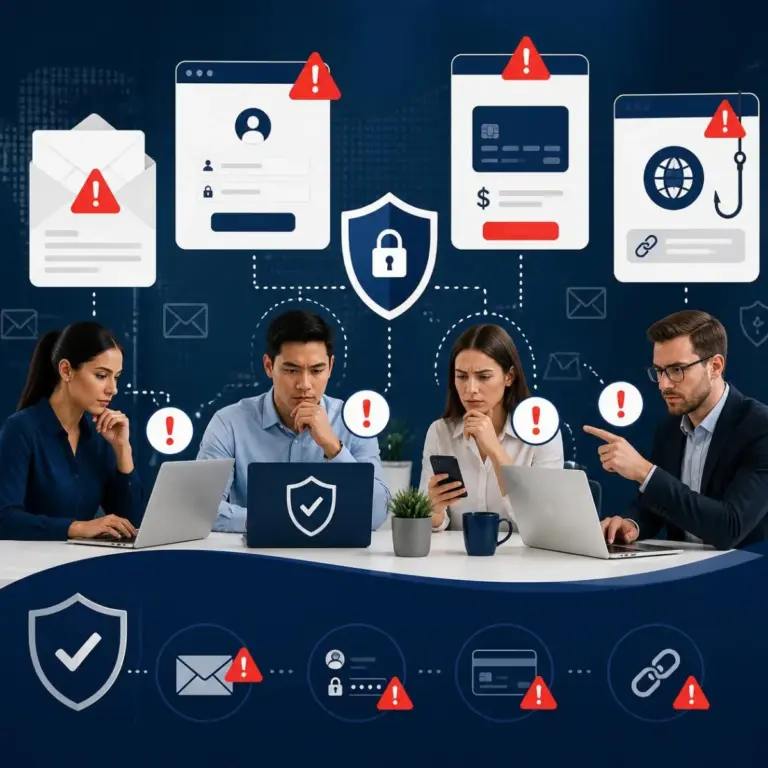
Phishing remains one of the most common ways attackers gain access to business systems. Instead of exploiting complicated technical vulnerability, cybercriminals often rely on a convincing email, text message or phone call to manipulate someone into clicking a link, opening an attachment, sharing credentials or sending money.
Although phishing messages continue to evolve, most still rely on familiar tactics. Attackers create urgency, impersonate trusted people, offer unexpected rewards or use information about your organization to appear legitimate.
By learning to recognize these warning signs, your team can help prevent account compromise, ransomware, financial fraud and data theft. Below are 17 phishing examples every employee should understand.
Key Takeaways
• Urgency, fear and emotional pressure often signal a phishing attempt.
• A familiar name or logo does not prove that a message is legitimate.
• Unexpected payment requests, account warnings and document links deserve extra scrutiny.
• Spear-phishing attacks use personal or business information to appear more credible.
• If in doubt, verify the request through a separate, trusted communication channel.
Urgent Account and Security Requests
Attackers frequently impersonate banks, software providers, administrators and other trusted organizations. Their goal is to make the recipient act before carefully reviewing the message.
1. “Your Password Will Expire”
This message claims that your email or business password will expire soon. It includes a link to “keep your current password” or “update your credentials.”
The link may lead to a fake login page that captures your username and password. Instead, open the company’s official website or contact your IT team directly to verify the request.
2. “Your Account Has Been Locked”
An email may warn you that your Microsoft 365, Google Workspace, banking or other business account has been locked because of suspicious activity. The message then asks you to verify your identity.
Attackers use this tactic because account lockout warnings create fear. Before clicking, check the sender’s address and access the service through a trusted bookmark rather than the email link.
3. “Confirm Your Account”
These messages often include buttons labeled Review Account, Verify Identity or Confirm Now. They may appear to come from a payroll provider, software vendor or cloud service.
However, the button may direct you to a fake sign-in page. Never enter credentials after following an unexpected link. Instead, navigate the service independently.
4. “Security Alert: Suspicious Login”
A fake security alert may claim that someone logged in from another city or device. The message usually asks you to review the activity immediately.
Although legitimate providers sometimes send security alerts, attackers can imitate them easily. Check the notification through the provider’s official application or website, not through email.
5. “Your Invoice Is Ready”
A message may appear to come from a vendor and include an invoice attachment or a link to view billing information. The attachment could contain malware, while the link may lead to a credential-harvesting page.
Employees should verify unexpected invoices with the vendor using a known phone number or an existing email threat.
Unexpected Refunds, Payments and Rewards
Financial incentives can make people overlook warning signs. Attackers know that recipients may act quickly when they believe money is available.
6. “You Are Due a Tax Refund”
This phishing message claims that the recipient has an unclaimed tax refund. It may request banking details, Social Security information or an identity verification payment.
Government agencies generally do not request sensitive information through unexpected email links. Treat refund messages with caution and use official government websites to verify tax communications.
7. “Refund Due to a System Error”
A fake retailer may claim that it accidentally charged the recipient too much and now owes a refund. The message then requests payment details or directs the recipient to a refund form.
Unexpected refunds deserve the same caution as unexpected invoices. Contact the retailer independently before responding.
8. “Your Subscription Payment Failed”
Attackers frequently impersonate streaming services, software providers, cloud platforms and security vendors. The message claims that a payment failed and asks the recipient to update billing information.
Rather than clicking the link, log in through the provider’s official website or application to review the account.
9. “You Won a Gift Card”
A gift card, prize or reward offer may require the recipient to complete a survey or pay a small processing fee. These messages often collect personal information or direct users to malicious websites.
Spear-Phishing and Executive Impersonation
Spear-phishing messages target a specific person, department or organization. Because attackers personalize these emails, they can appear more convincing than generic scams.
10. “A Message From Your CEO”
An attacker may imitate the CEO or another executive and ask an employee to purchase gift cards, send funds or share confidential information.
The sender’s display name may look correct even when the actual email address does not. Employees should verify unusual requests through a phone call, video call or separate message.
11. “Please Process This Wire Transfer”
Accounting and finance teams are common targets of this scam. Attackers pose as executives, vendors or customers and create a sense of urgency to convince employees to send payment.
A strong payment verification process should require independent confirmation, especially when the request changes banking information or creates unusual urgency.
12. “Send Me the Employee or Customer File”
Attackers may impersonate a manager and request payroll records, tax forms, customer lists or other sensitive files.
Before sending confidential information, confirm the request, verify the recipient and use an approved secure file-sharing method.
13. “Updated Bank Details”
A fraudulent vendor email may announce a change to its bank account or payment instructions. If staff update the vendor record without verification, the next payment may go directly to the attacker.
Always confirm account changes through a trusted contract and follow established approval procedures.
14. “Review This Confidential Document”
This message may appear to come from a colleague, attorney, partner or executive. It includes a link to a shared document that requires login.
Attackers commonly use fake Microsoft 365, Google Drive and Dropbox pages to steal credentials. Verify the sender and access shared files through the organization’s normal collaboration platform.
Unexpected Refunds, Payments and Rewards
Phishing no longer targets only traditional email inboxes. Attackers also use text messages, voicemail notifications, collaboration platforms and delivery alerts.
15. “You Missed a Delivery”
A fake shipping notification may include a tracking link or request a small redelivery fee. The link can lead to malware, a fake payment page or a form designed to collect personal information.
Check deliveries directly through the shipping company’s official website or application.
16. “You Have a New Voicemail”
This message may contain an audio attachment or a link to hear voicemail. However, the attachment may contain malware, or the link may lead to a fake Microsoft 365 login page.
If the message seems unexpected, access voicemail through your normal phone or communication system.
17. “You Were Mentioned in a Document”
Attackers may send a collaboration notification claiming that someone mentioned the recipient in a document, project or shared task. The link often leads to a fake sign-in page.
Instead of clicking the notification, open the collaboration platform directly and check for the document or message.
What Should Employees Do When They Spot Phishing?
When a message seems suspicious, employees should:
1. Stop and avoid clicking links or opening attachments.
2. Check the sender’s full email address, not just the display name.
3. Look for unusual urgency, spelling errors, unexpected requests or unfamiliar links.
4. Verify the request through a separate, trusted channel.
5. Report the message according to company procedures.
6. Contact IT immediately if they have clicked a link, opened an attachment or entered credentials.
Employees should never feel embarrassed about reporting a suspicious message. Early reporting gives the organization a better chance to secure accounts, block malicious links and prevent additional damage.
All It Takes Is One Click
Phishing attacks succeed because they exploit trust, urgency and routine business activity. However, awareness training, technical email protection, multi-factor authentication and clear verification procedures can significantly reduce the risk.
By learning to recognize these 17 phishing examples, your team can make safer decisions and respond faster when something looks wrong. Accent Consulting can help strengthen your organization’s defenses with security awareness training, email protection, managed IT services and cybersecurity guidance tailored to your business.
Reach Out To Us
Recent Posts
-
Recognized Among America’s Most Reliable Companies – 2026March 11, 2026/0 Comments -

-
Healthcare IT Services: Benefits, Best Practices and MoreOctober 2, 2026/ -
-
Digital Transformation Services for Business LeadersSeptember 23, 2026/ -
-
Once Futuristic, Now Foundational: Observations from IMTS 2026September 17, 2026/ -
What 1,625 Cybersecurity Findings Revealed About Manufacturing RiskSeptember 9, 2026/